Changelog

What shipped, and when.

Changes that reached the live site, newest first, in plain words. Work in progress is listed the day it ships, not before.

Follow with RSS

  1. Sturdier exports, ready for real data and sign-in

    iOS · Android · Agents

    Apps you export are sturdier: no crash when deleting an emoji, no white flash when an iPhone app opens, clearer accent-coloured text in light mode, and screen readers (the phone's read-aloud mode) that name fields, headings and many controls, all checked on an iPhone simulator and an Android emulator. Switches and sliders now vibrate on Android 13 and older.

    Exports are ready for your own data. Each screen's words come from one place, a tapped list row tells the next screen which row it was, a photo that fails to load says so, the launch screen can wait for sign-in, a gate that keeps screens for signed-in people is ready to switch on, and an example settings file shows where your keys go.

    The export now names our Supabase recipe (a ready-made database and sign-in setup), and your agent can add it to an app you exported before. Updates reach those apps too, including the navigation and launch files we supplied; your own code is never touched. If you sign in with Google or GitHub, your agent can now add components and take updates after the first export.

    How updates reach your app
  2. Your app on your phone in the first minute

    App Designer · Templates

    Pick a kind of app on the homepage, type its name and choose its colour, then scan the QR code: your app opens full screen in your phone's browser in about fifteen seconds, with no account. It is a preview; the app you build from it is native.

    In the App Designer the canvas now shows your app as it will look, with its colours, photos and tab icons, and a Make it yours step names it as soon as it opens. Every design can have a share link and a QR code, and every kind of app has its own page.

    What changed and why
  3. Add a screen straight from your app's design

    Agents · App Designer

    Design a new screen in the same App Designer project, press Send app to agent, and ask your agent to add that screen by name. It writes the screen, the route and the one line that registers it, and leaves your own files alone. Before, adding a screen needed a share code for that one screen, which the App Designer had no button for.

    Your agent also has fewer tools to choose from, so every conversation with opointo connected costs fewer tokens. Anything set up with the old tool names keeps working.

    How to add a screen
  4. Your agent can design screens with you

    Agents · App Designer

    Ask your coding agent for an app or a screen and it can now sketch the design itself, then hand you a link. The link opens its design in the App Designer as a new design, nothing saved yet: every screen, the tab bar and the arrows between screens, ready for you to change. Save it if you want to keep it, then press Send app to agent and your agent builds what you approved.

    Designing this way is free and needs no account. A step-by-step guide your agent can read is at opointo.com/skills/opointo/SKILL.md.

    Connect your agent
  5. Your coding agent signs in, so your licence key stays out of its settings

    Agents

    When your coding agent builds the app you designed, it can now use your subscription by signing in to opointo, instead of needing your licence key in its settings. In Claude, the first build shows a Connect button. In Claude Code, the first build tells you to run claude mcp login opointo once. Either way you sign in with Google or GitHub, see which app is asking, and choose Allow. The agent never sees your key.

    Every agent you allow is listed under Connected apps on your account page, where one click disconnects it. A licence key or an agent token in your agent’s settings keeps working exactly as before.

    See your connected apps
  6. Subscribe while signed in, and your licence key is saved for you

    Pricing

    Subscribe from the pricing page while you are signed in, and the licence key from that purchase is saved to your account on its own. Export from the App Designer on any computer you sign in on, and make agent tokens for your coding agent, with nothing to paste.

    Keep your account’s email at checkout. A purchase made with another email, or signed out, sends the key by email as before, and you can still save it on your account page. If your account already holds a different key, the new one waits there until you choose which to use.

    See pricing
  7. The App Designer by keyboard, and a canvas true to each phone

    App Designer

    Everything in the App Designer now works from the keyboard. Add a block from the Blocks panel, move between blocks with the arrow keys, press Enter to select one, F2 to rename a screen and Delete to remove a block. Dialogs keep your focus until Escape closes them.

    Each phone on the canvas now shows exactly its device’s screen, with the header your exported app gives it (a large title on a tab), the app’s own screen and card colours, and text at the app’s sizes.

    Open the App Designer
  8. More of Android follows Material 3

    iOS · Android

    On Android, the floating action menu is Material 3 Expressive’s own, search opens Material’s search field, and the stepper, the quantity stepper and the icon buttons take Material’s shapes, sizes, press feedback and haptics.

    On iOS, the stepper is Apple’s system stepper, and the date picker and a header’s main action take your app’s accent colour instead of system blue.

    Each was checked on an iPhone and a Pixel 8 before it shipped, and so was every starter app.

    Browse the components
  9. Exports get the small things right

    iOS · Android

    A generated sign-up form now hides the password as you type it, and iOS offers a strong password. Email fields bring up the email keyboard, Return moves to the next field, and the form moves out of the keyboard’s way.

    A button you put in a screen’s header becomes a native bar button on iOS and a top app bar action on Android. The floating add button floats in the corner above the tab bar instead of scrolling away with the list, and dates open the system picker: Apple’s compact date picker on iOS, Material 3’s date and time dialogs on Android.

    Each was checked on an iPhone and an Android phone before it shipped.

    See them on both phones
  10. The compatibility table, checked again

    iOS · Android

    Every component was run again on an iPhone and a Pixel 8 at the current code, and a generated app was built and run on both phones, so every cell of the table is a fresh observation.

    Verified on iOS 26 and on Android 16 with Material 3 Expressive. iOS 27 support is in progress.

    See what runs where
  11. Select several blocks, and Tidy up

    App Designer

    Shift-click blocks, or drag a box around them, and they move, duplicate and delete as one. Drag the group to another row or onto another screen, and any arrow it carries goes with it.

    Tidy up lays your screens out in the order people move through them, with one press or Ctrl+Alt+T. Each of these is a single undo.

    Open the App Designer
  12. Every component, recorded on both phones

    iOS · Android

    The components page now plays each component on an iPhone and an Android phone side by side, at one scale, in light and dark, with its measured size under each. Liquid Glass on iOS 26, Material 3 Expressive on Android: two design languages, each the real thing.

    Browse the components
  13. Arrows that build what they show

    App Designer

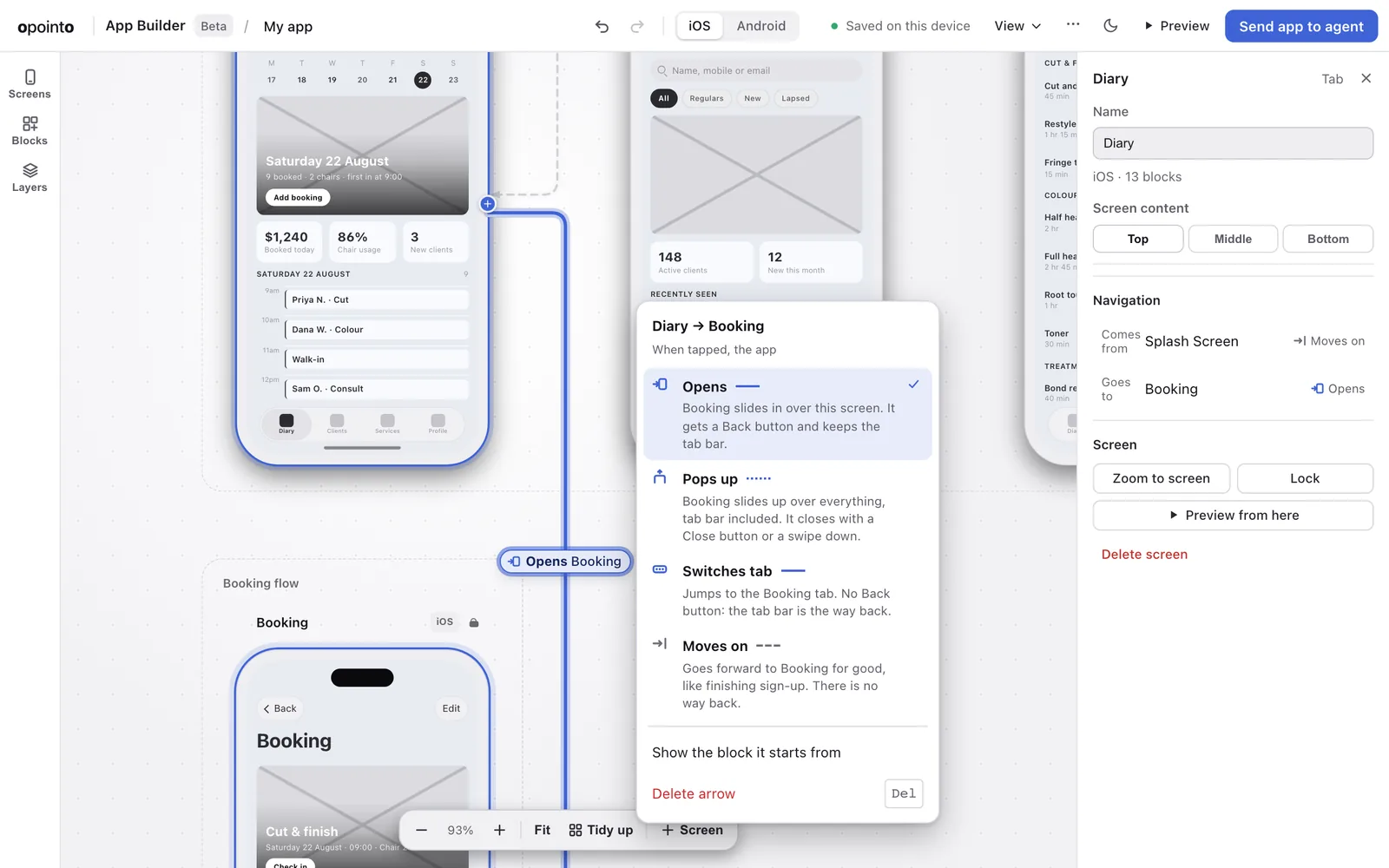
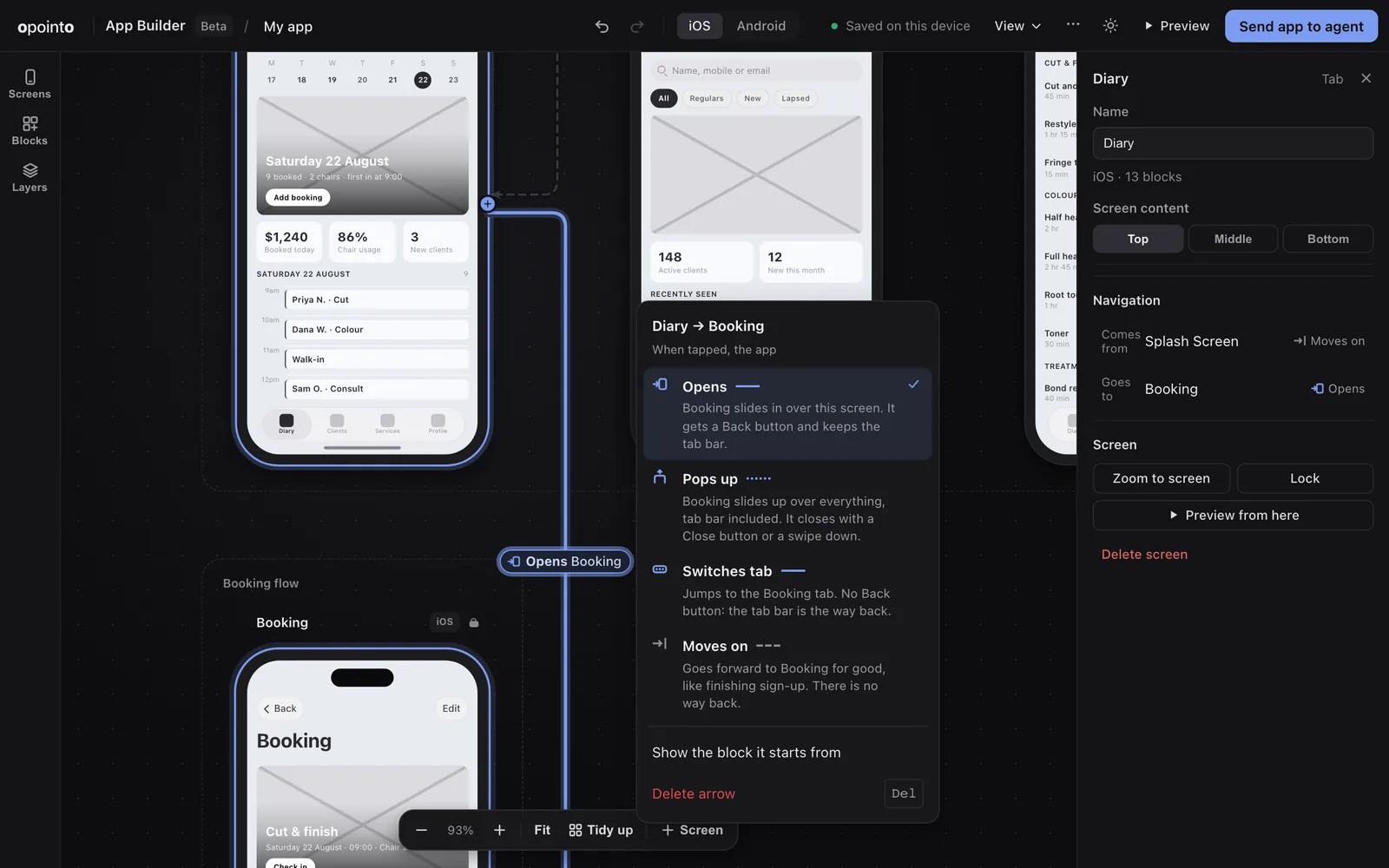
    The App Designer’s arrow menu, offering Opens, Pops up, Switches tab and Moves on, each with a sentence on what it builds

    Draw an arrow from a button to a screen and that is the navigation your app ships with. Every arrow says what it does (Opens, Pops up, Switches tab or Moves on), and an arrow the app cannot build is flagged on the canvas instead of at the end.

    The blocks panel speaks plain words, grouped by what each block is for with the most used first, and its search forgives a typo. Drag to move, pull an edge to resize, guides appear when your spacing is even, and a short tour shows you around the first time.

    How it works
  14. Components carry the names the platforms use

    Agents

    Components are named the way Apple, Material and the major React Native libraries name them: a switch is switch, a segmented control is segmented-control, a sheet is bottom-sheet.

    Every name we ever published keeps working. Apps exported before the rename keep receiving updates, and an agent that asks for an old name gets the right component.

    Browse the components
  15. One table for what runs where

    iOS · Android

    One compatibility table now feeds every page, the docs and what your agent is told. It is generated from what was actually run on a device, so nothing claims a platform until a run says so.

    Xcode 27 support is in progress: an Expo app built with Xcode 27 crashes at launch on iOS 27 unless it opts into the UIKit scene life cycle, which takes expo 57.0.23 or later and expo-build-properties 57.0.20 or later, with ios.enableSceneSupport. Expo SDK 56 and earlier cannot opt in; new exports turn it on, and Xcode 26 stays the requirement until we have run an Xcode 27 build on iOS 27. Your agent is told before it builds, and verify_app stops rather than hand you an app that would crash at launch.

    See what runs where
  16. A shorter Android tab bar

    Android

    The Android tab bar is now Material 3 Expressive’s short navigation bar: 64dp tall, and 88dp with the gesture area under it, measured on a Pixel 8. It was 128dp, because the room for the gesture area was added twice.

  17. Connect your coding agent in one step

    Agents

    A setup page with the exact command or config for Claude Code, Cursor, Codex, VS Code and Gemini CLI, with a copy button for each. The free lookup tools need no account and no key.

    llms.txt and AGENTS.md now point agents to the same page, so an agent that finds us on its own lands on the right instructions.

    Connect your agent
  18. A simpler price: $25 a seat

    Pricing

    One plan at $25 per seat per month, or $20 a month billed yearly. The price you join at is locked for as long as you stay subscribed, and designing in the browser stays free.

    See pricing
  19. Material 3 Expressive on Android

    Android

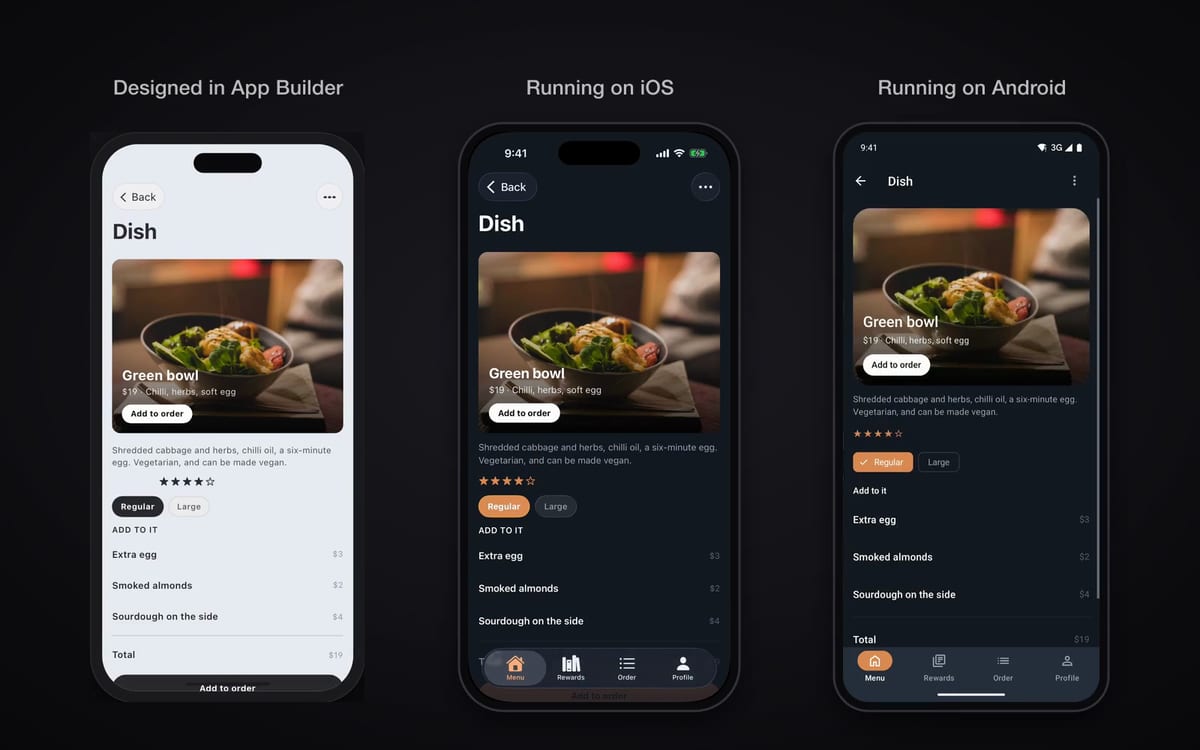
    One screen designed in the App Designer, running on iOS and on Android

    Every component on Android now draws Material 3 Expressive through Jetpack Compose, on every Android version, with no glass or blur. All ten starters were re-checked on Android 16, 15 and 11.

    iOS keeps real Liquid Glass on iOS 26. The two are different design languages on purpose: native on both.

  20. Tap through the app you drew

    App Designer

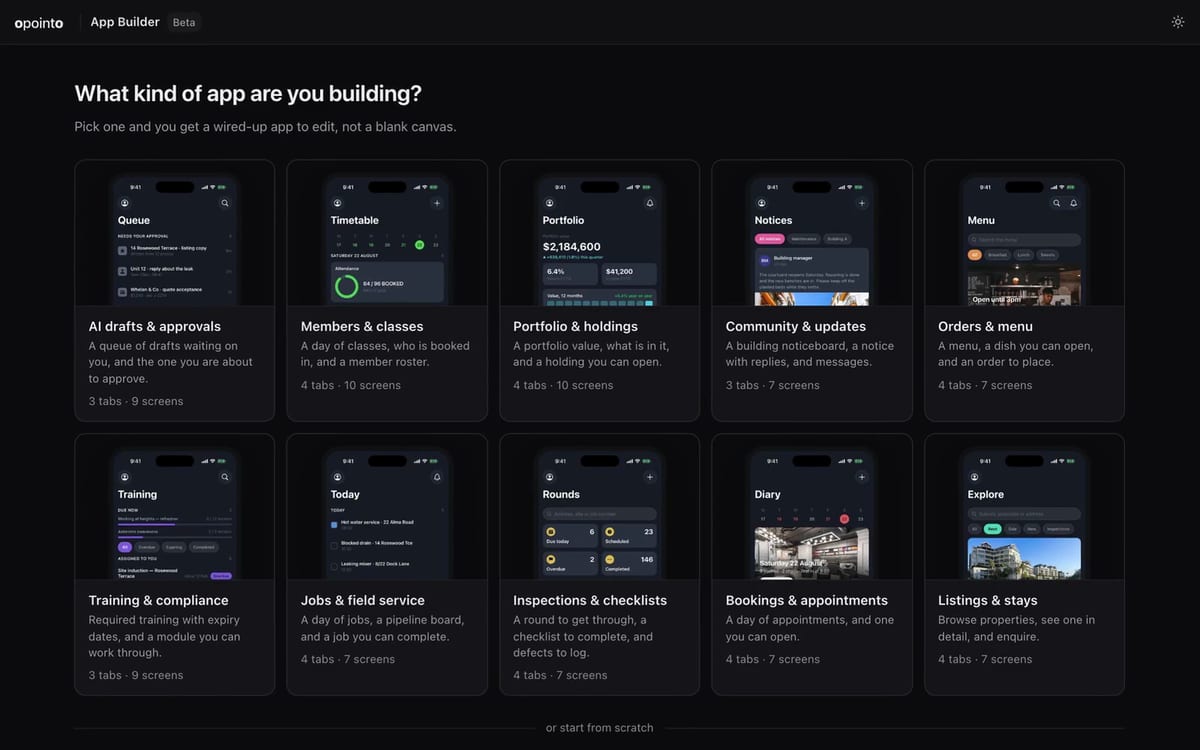
    The App Designer's starter picker, showing ten starter apps

    Preview runs your screens the way the app will: tap a block to follow its arrow, switch tabs, go back. A command menu (Cmd K or Ctrl K) finds any screen, block or action by typing.

    Starters now open ready to edit, and the picker shows each one’s real first screen.

    Open the App Designer
  21. Tested with Claude Sonnet: no top-tier model needed

    Agents

    A Claude Sonnet-class agent built the Bookings starter from a share code and ran it on iOS and Android with zero interventions, twice in a row. Our tools used about 2% of the agent’s context on the whole build.

  22. Your agent keeps building after the first app

    Agents

    New build tools let your agent add a screen, install a component and update the components and app shell we supplied as iOS and Android move. verify_app checks the result against what it was told to write, so the agent knows when it is done.

  23. Listed in the official MCP registry

    Agents

    The opointo server is live and listed, so agents can find it by name. The lookup tools are free: which component to use, what props it takes, and whether a snippet will render blank.

  24. Exports build from a bare project

    iOS · Android

    A generated app now builds and runs from an empty folder outside our code, on iOS and on Android, and the licence terms travel with the export.

  25. Pop-ups join tabs and pushed screens

    App Designer

    An arrow can now open a screen as a pop-up (a modal) as well as a tab or a pushed screen, which completes the navigation you can draw. Navigation headers follow your theme in dark mode.

  26. Send your app to your agent

    App Designer · Agents

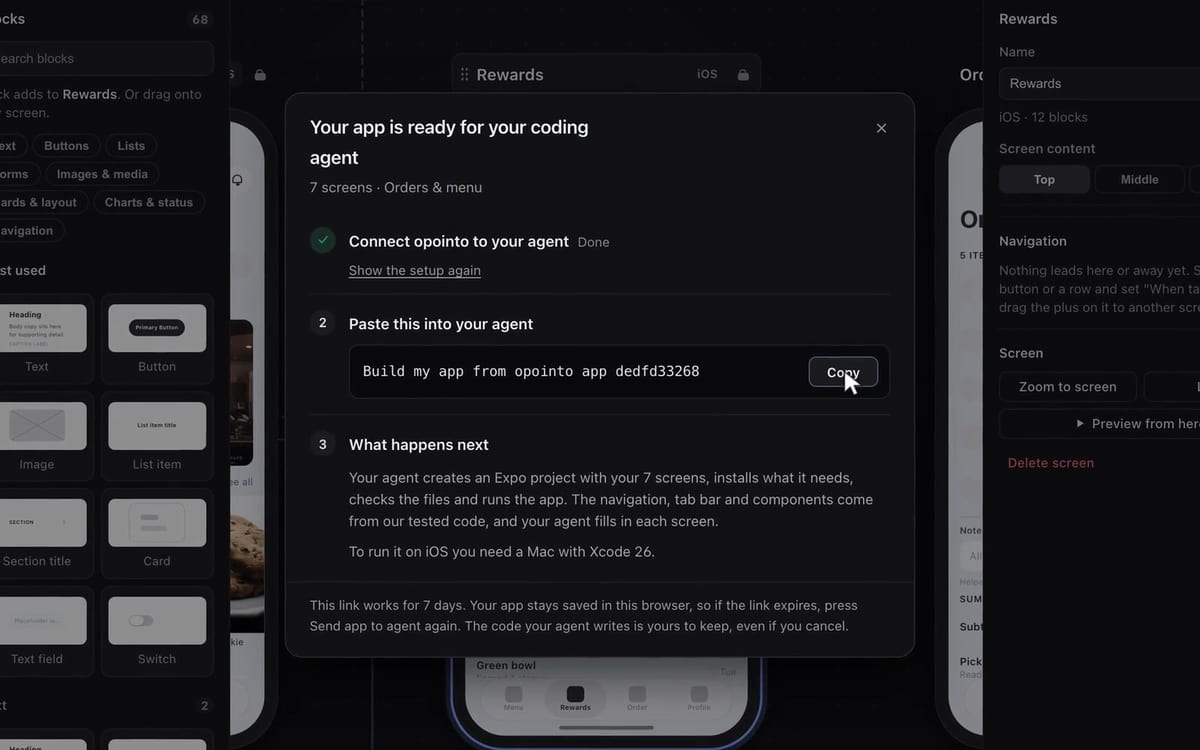
    The App Designer's handover dialog with the one line to paste into a coding agent

    The whole canvas now ships as one app: press Send app to agent, paste one line into your coding agent, and it builds an Expo project with your screens, the navigation and the app shell.

  27. Your canvas saves itself

    App Designer

    Everything on the canvas is saved in your browser as you work, so a reload never loses a design.

Your app moves with us. Your own code stays yours.

Your agent can update the components and app shell we supplied. What you wrote is never touched.