Finance & AI
AI drafts & approvals
A queue of drafts waiting on you, and the one you are about to approve.
- Tabs
- Queue, Approved, Profile
- Screens
- 9, including an onboarding flow and a splash screen
- Platforms
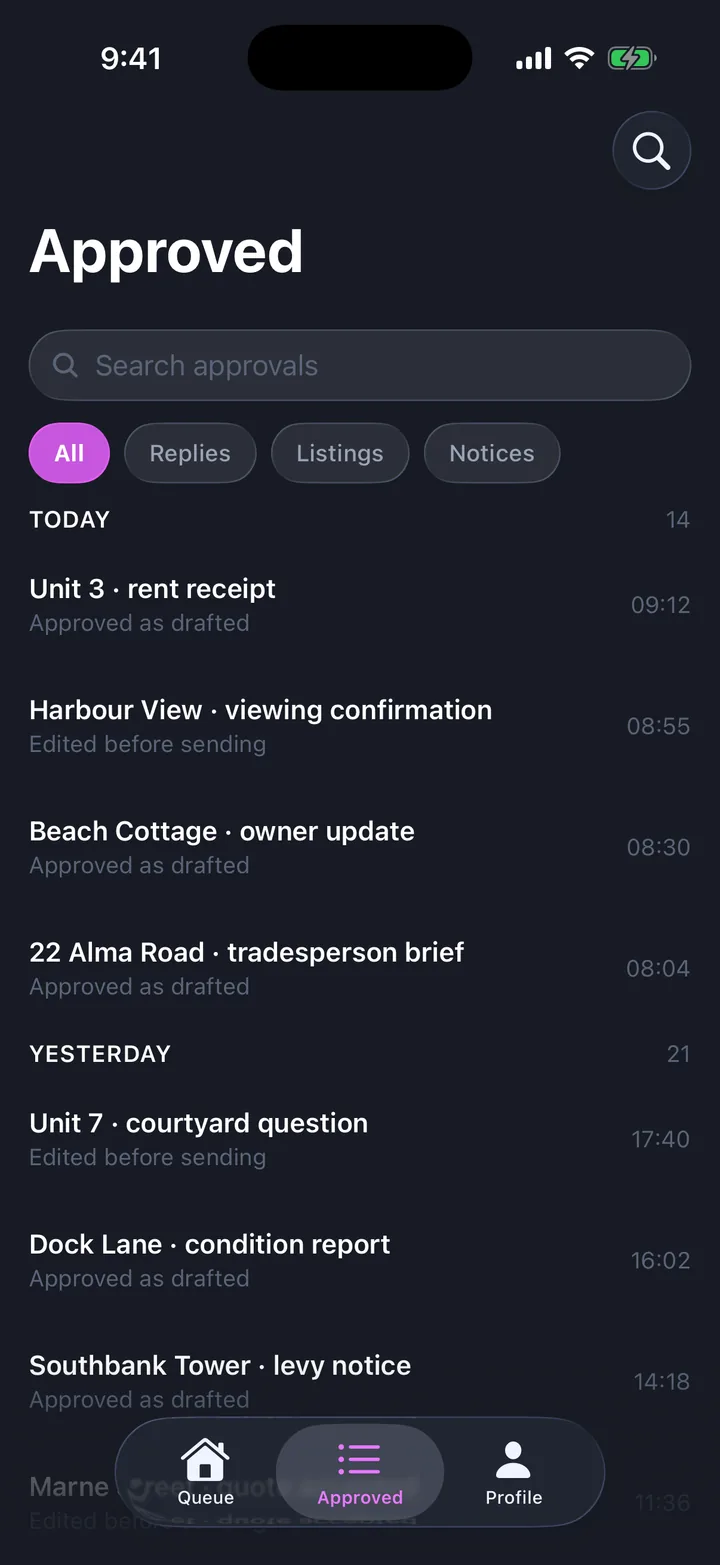
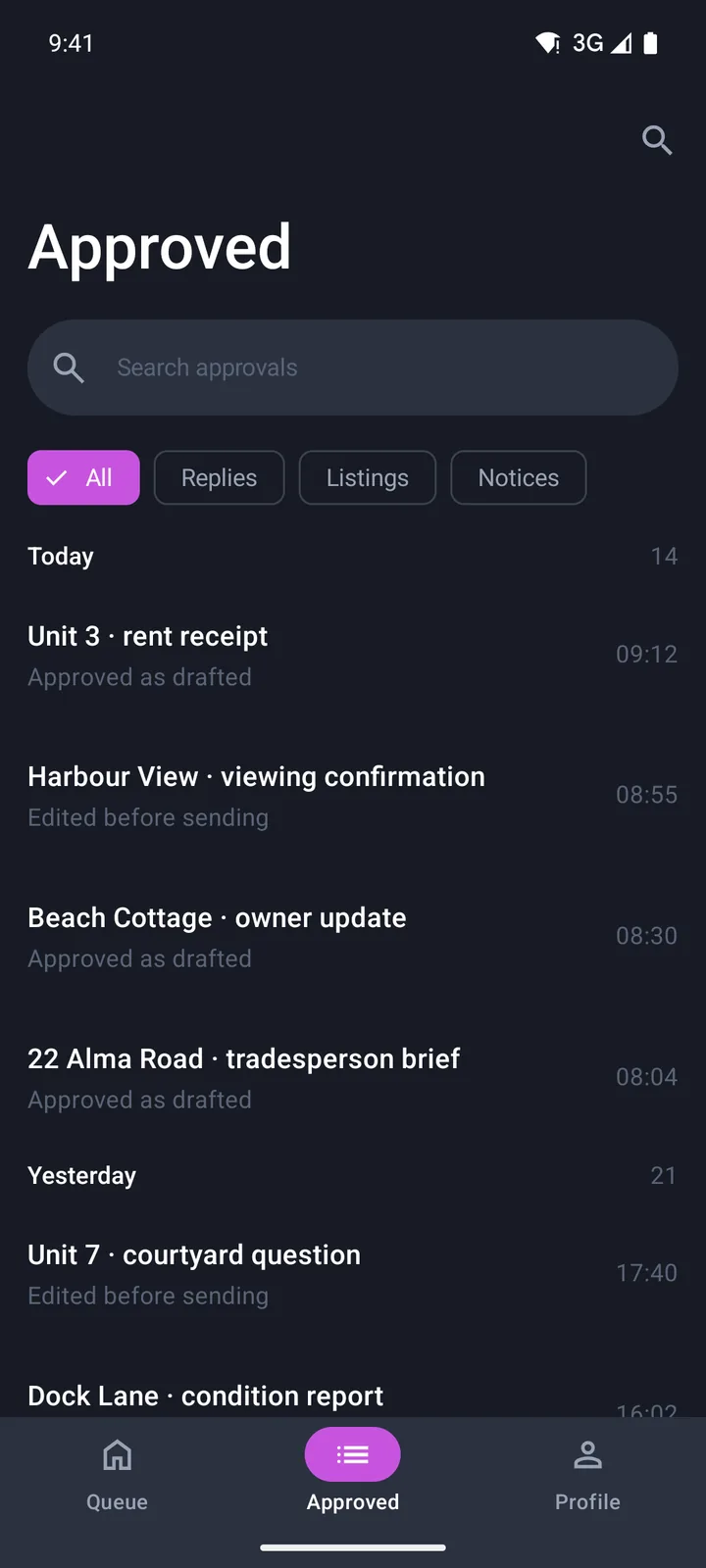
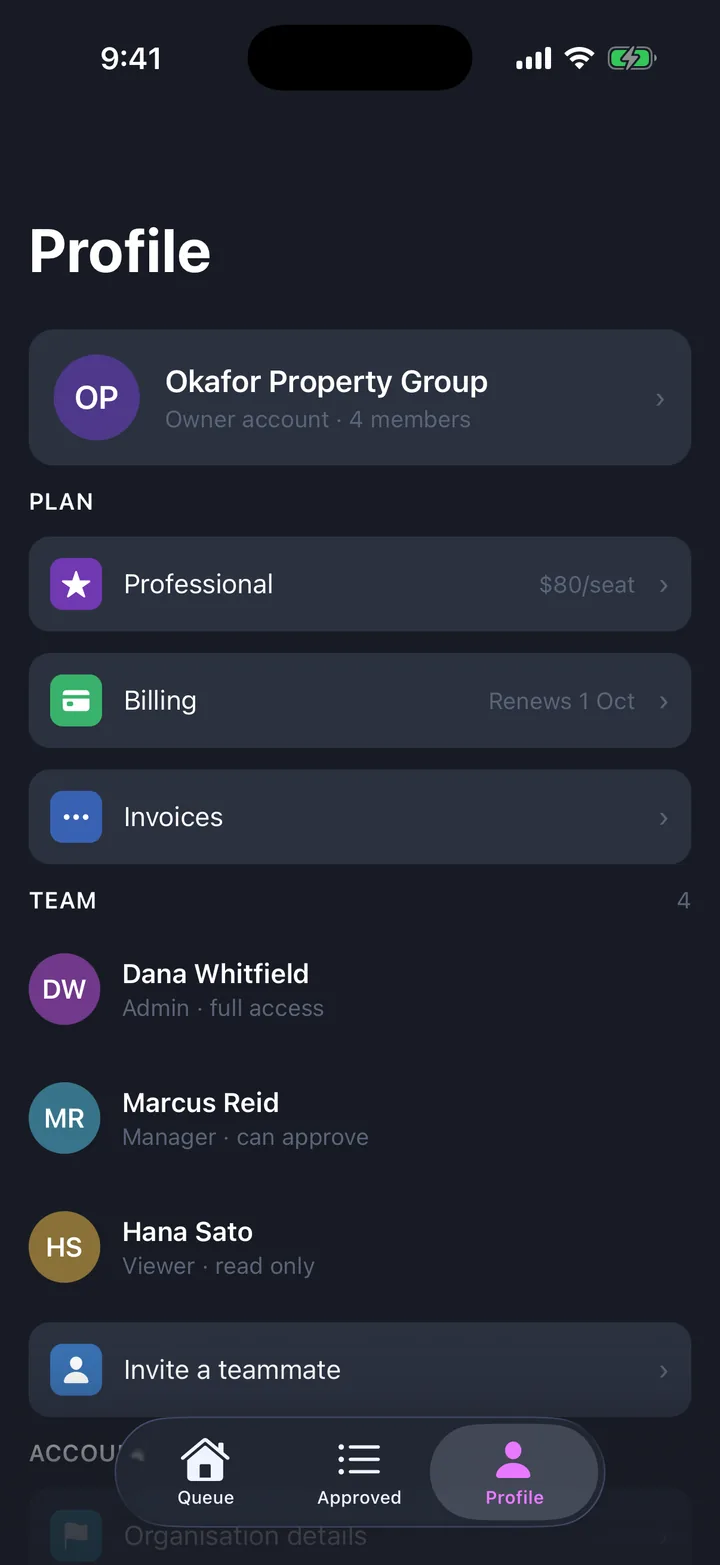
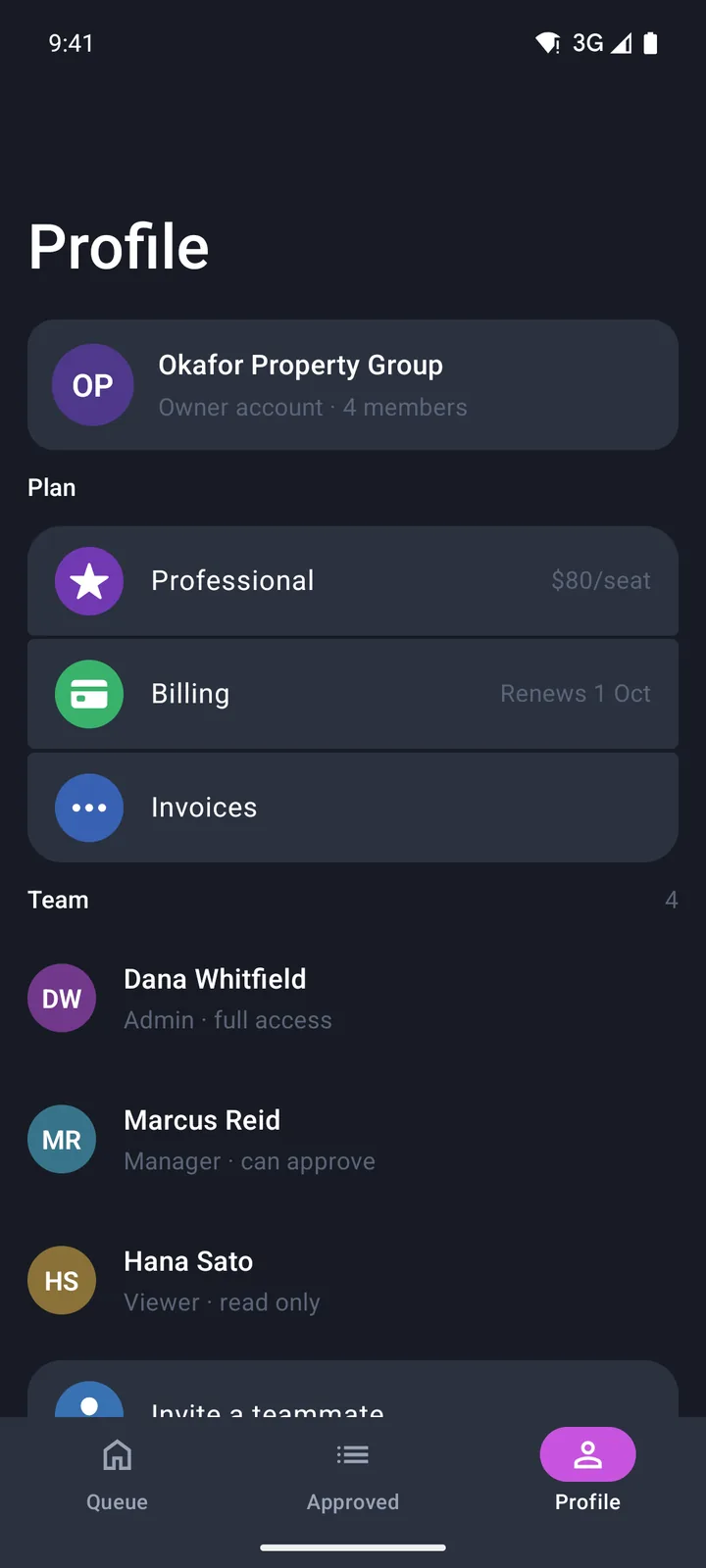
- iOS 26 with Liquid Glass, Android with Material 3 Expressive
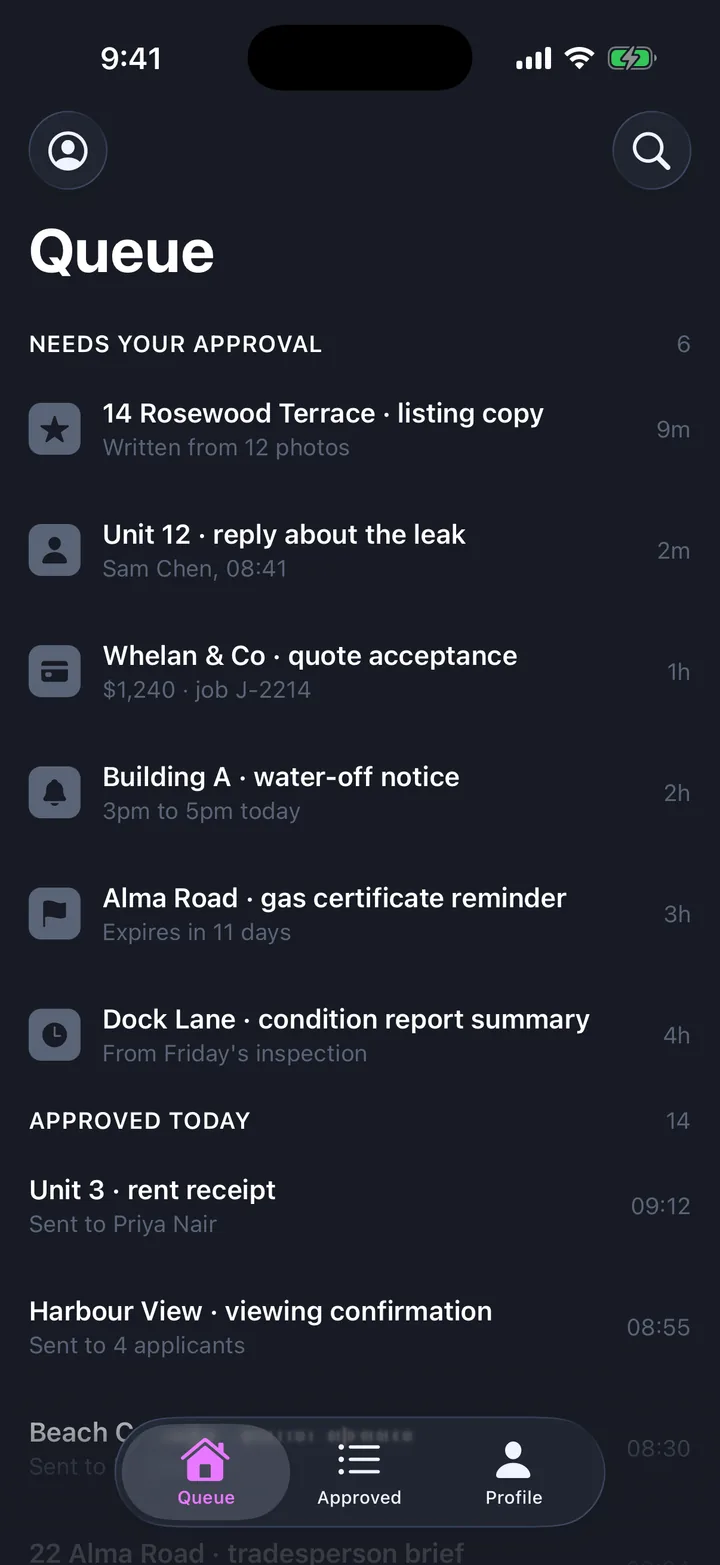
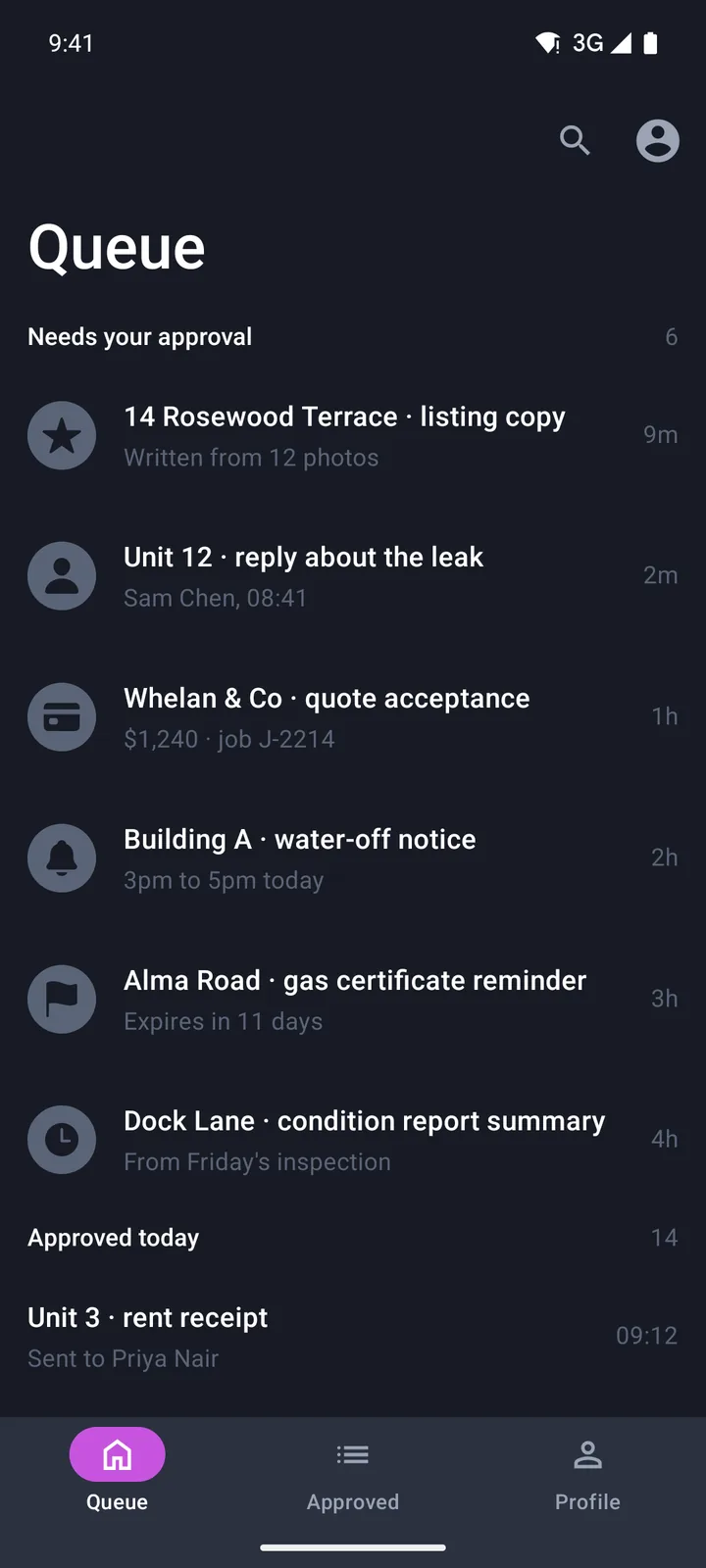
Every screen
Captured running, on iOS and on Android.
The four screens with a recording, in the order you reach them: each tab, then the screens it opens. iOS 26 on the left, Android on the right, both the generated app running on a simulator rather than a mock-up.
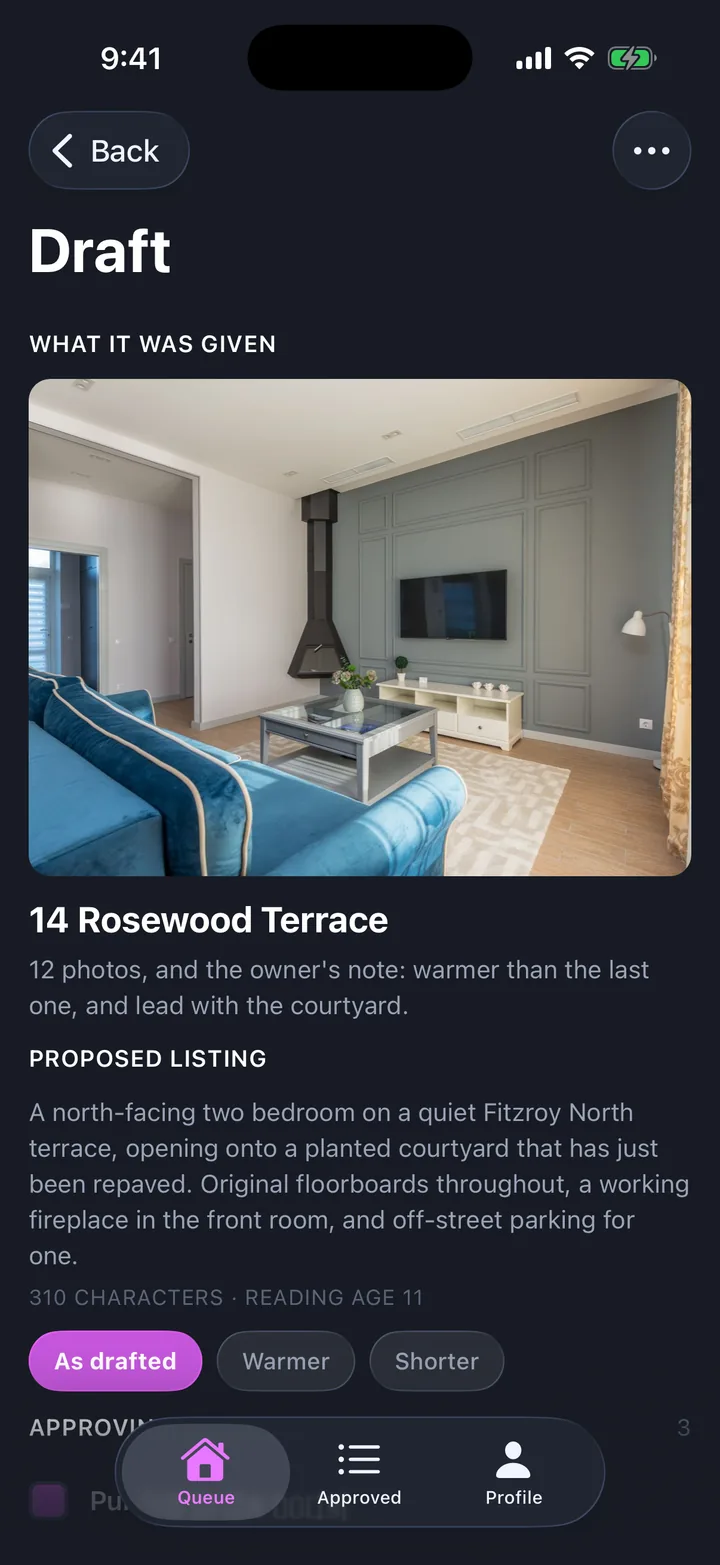
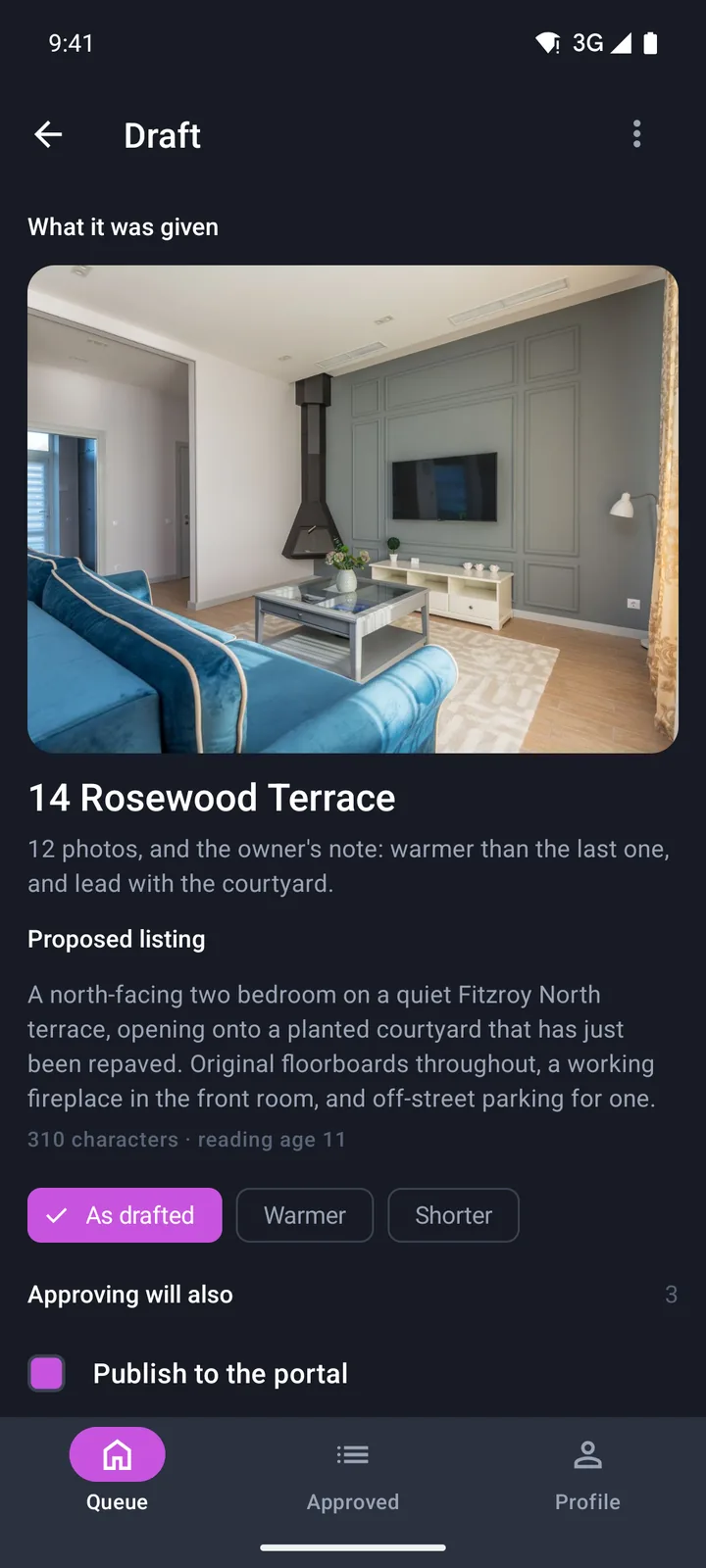
Make it yours
Change anything, then send it to your agent.
- 01
Open it in the App Builder
The starter opens with its tabs, screens and arrows already drawn. No account needed.
- 02
Edit the words, photos and theme
Drag in blocks, remove screens, draw new arrows. The preview shows iOS and Android.
- 03
Send it to your coding agent
It builds one Expo project for both platforms. You need a Mac with Xcode 26 to build the iOS app. Android needs only the Android SDK.